
Keeping up with your child’s school life is hard when report cards only arrive a few times a year. The Genesis Parent Portal fixes that by putting grades, attendance, and schedules in one secure place you can check anytime.
This guide explains what the platform does, how to get your account working, and how to make the most of it.
What Is the Genesis Parent Portal?
It is an online tool that many school districts use to share student information with families. It connects to the Genesis Student Information System, which schools use to manage student records.
Through it, parents and guardians can follow their child’s progress without calling the office or waiting for a printed report. Each district sets up its own version, so the login page, features, and account rules can differ from one school to another.
Why Parents Use It
Most families use the platform to stay informed and catch problems early.
- Faster updates: New grades and attendance changes show up soon after teachers post them.
- Early support: If a grade drops or absences add up, you can talk to your child and the teacher before it becomes a bigger issue.
- Less paperwork: Many forms and records are available online.
- Better conversations: Real data makes parent-teacher talks more useful.
How to Set Up Your Account
You usually need an account created or approved by your child’s school before you can sign in. The steps are similar in most districts:
- Contact the school or district office. Ask how to get access. Some schools send an activation email, while others give you a code or ask you to register in person.
- Confirm your details. The school may ask for your name, your relationship to the student, and your email address. Use the same email the school has on file.
- Check your inbox. Look for an invitation or activation link, and check your spam folder if it doesn’t arrive.
- Create a strong password. Choose one you don’t use on other websites.
- Finish the setup prompts. Your account is then ready to use.
If you have more than one child in the district, ask the school to link all of them to a single account so you can switch between students easily.
How to Log In to the Genesis Parent Portal
Once your account is ready, signing in takes about a minute:
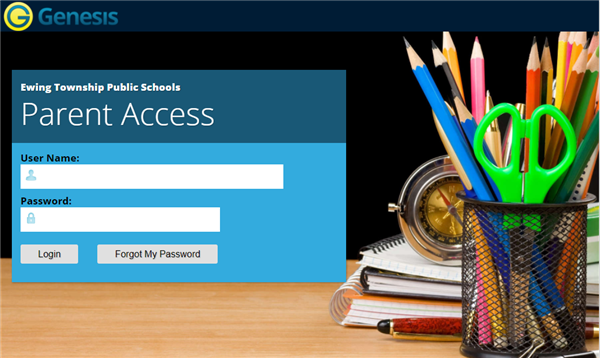
- Go to your school district’s official website and find the parent portal link.
- Enter your email address or username.
- Type your password.
- Click the login button to reach your dashboard.
Always start from the school’s official site. Searching for the login page through random links or ads can lead you to a fake page.
Fixing Common Login Problems
Most access issues have simple solutions:
- Forgot password: Use the reset option on the login page and follow the email instructions.
- Wrong username or email: Make sure you are using the exact email the school has on record.
- Account locked: Too many failed attempts can lock an account for a short time. Wait a bit or ask the school to unlock it.
- Page not loading: Try another browser, clear your cache, or switch devices.
- No activation email: Check spam, then ask the school to confirm your email address.
If none of these work, contact your school’s office or technology support.
Key Features You Can Expect
Features vary by district, but these are the most common.
Grades and Progress Reports
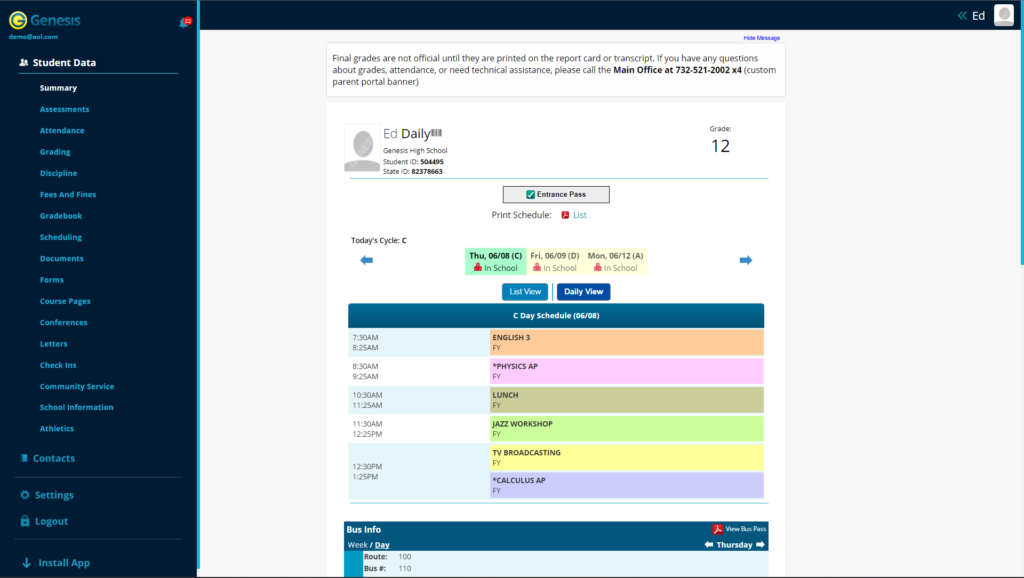
View current grades for each class and, in many cases, individual assignment scores. This shows where your child is doing well and where they may need help.
Attendance Records
See absences, tardies, and early dismissals. Checking regularly helps you spot patterns and confirm the school’s records are accurate.
Class Schedules
Review your child’s daily schedule, including class names, teachers, and sometimes room numbers.
Student and Contact Information
Many schools let you check the details on file. Keeping them current ensures you receive important messages and emergency notices.
Forms and Documents
Some districts offer online forms and report cards, which cuts down on paper.
Tips for Getting the Most Out of It
- Check weekly, not constantly. A quick look once a week keeps you informed without adding stress.
- Review grades with your child. Use the numbers as a friendly starting point, not a reason to scold.
- Reach out to teachers early. If something looks off, send a polite message instead of waiting for the next report card.
- Update your information. Tell the school if your phone number or email changes.
Keeping Your Account Safe
Because it holds private student information, treat your account like a bank login. Use a unique password, avoid public Wi-Fi when signing in, and never share your password. Your school will not ask you to send it by email.
Frequently Asked Questions
Is it free to use?
For families, access is typically provided at no cost by the school district.
Can I use it on my phone?
Most districts allow access through a mobile browser, and some offer an app. Ask your school what is supported.
Who can get an account?
Usually parents or legal guardians listed in the student’s records. The school confirms your identity first.
Why can’t I see some features?
Each district chooses which features to turn on, so you may not see everything described here.
Final Thoughts
The Genesis Parent Portal gives families a simple way to stay involved in their child’s education. Once your account is set up, a few minutes of checking in each week can help you spot issues early and support your child’s success. If you run into trouble, your school’s office is the best place to get quick, accurate help.


1 Comment